Outlook - Checking your settings
1. Open Mail Settings
-
Press
Win + R, typecontrol, and press Enter. -
In the Control Panel search box (top right), type Mail.
-
Click Mail (Microsoft Outlook).
-
In the Mail Setup window, click Email Accounts….
2. Edit the Email Account
-
In the Email tab, select your account.
-
Click Change.
3. Update IMAP Server Settings
-
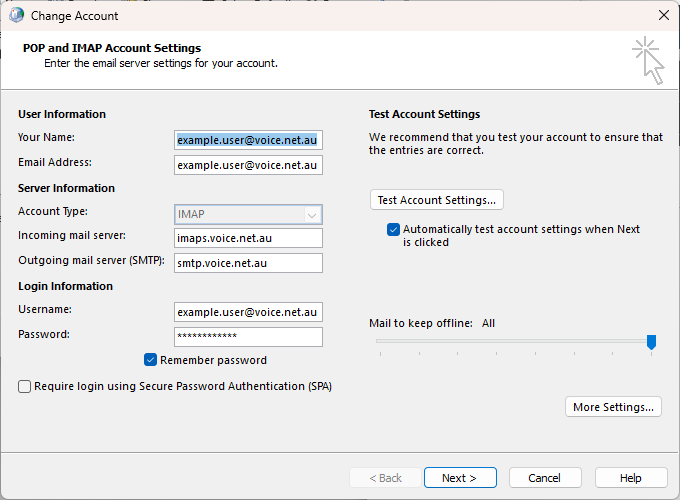
In the Change Account window, update:
-
Incoming mail server:
-
If Account Type is IMAP:
imap.voice.net.au - If Account Type is POP:
imap.voice.net.au
-
-
Outgoing mail server (SMTP):
smtp.voice.net.au -
Username: Your full email address (Eg
example.user@voice.net.au)
-
4. Click More Settings...
-
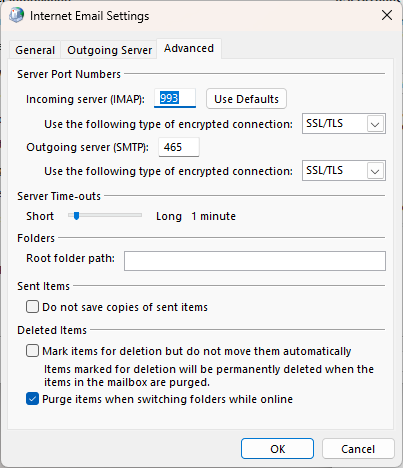
Go to the Advanced tab (Only one of Incoming server (IMAP) or Incoming server (POP) will be present):
-
Incoming server (IMAP):
143 (STARTTLS)or993 (SSL/TLS) - Incoming server (POP):
110 (STARTTLS)or995 (SSL/TLS) -
Outgoing server (SMTP):
587 (STARTTLS)or465 (SSL/TLS) -
Use the following type of encrypted connection:
STARTTLS for port 143/110/587)orSSL/TLS for port 465/993/995
-
-
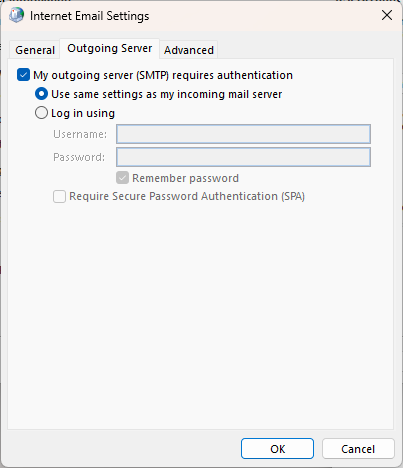
Go to the Outgoing Server tab:
-
Tick My outgoing server (SMTP) requires authentication
-
Choose Use same settings as my incoming mail server
-
5. Save and Test
-
Click OK, then Next to test the settings.
-
If successful, click Close, then Finish.
Screenshot Examples