
Outlook - Checking your settings
1. Open Mail Settings
- Shut down outlook.
-
Press
Win + R, typecontrol, and press Enter. -
In the Control Panel search box (top right), type Mail.
-
Click Mail (Microsoft Outlook).
-
In the Mail Setup window, click Email Accounts….
2. Edit the Email Account
-
In the Email tab, select your account.
-
Click Change.
3. Update IMAP Server Settings
-
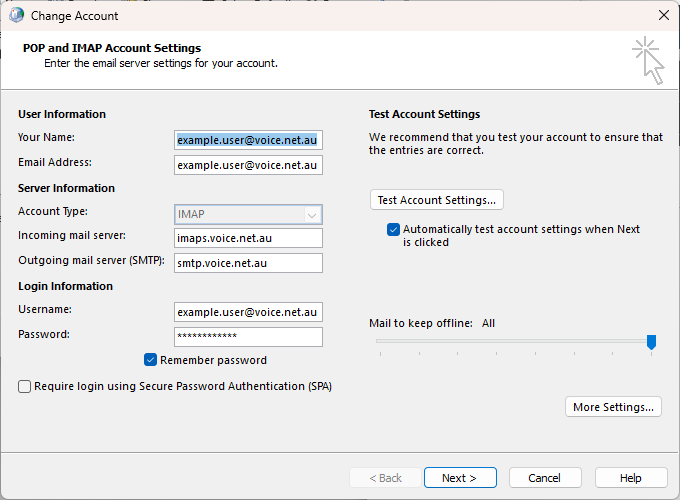
In the Change Account window, update:
-
Incoming mail server:
-
If Account Type is IMAP:
imap.voice.net.au - If Account Type is POP:
imap.voice.net.au
-
-
Outgoing mail server (SMTP):
smtp.voice.net.au -
Username: Your full email address (Eg
example.user@voice.net.au)
-
4. Click More Settings...
-
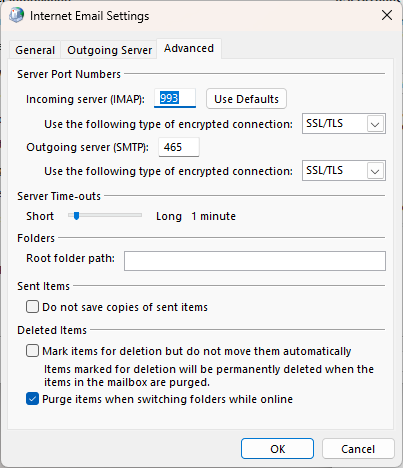
Go to the Advanced tab (Only one of Incoming server (IMAP) or Incoming server (POP) will be present):
-
Incoming server (IMAP):
143 (STARTTLS)or993 (SSL/TLS) - Incoming server (POP):
110 (STARTTLS)or995 (SSL/TLS) -
Outgoing server (SMTP):
587 (STARTTLS)or465 (SSL/TLS) -
Use the following type of encrypted connection:
STARTTLS for port 143/110/587)orSSL/TLS for port 465/993/995
-
-
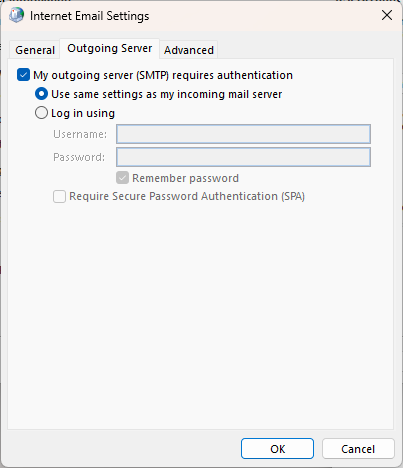
Go to the Outgoing Server tab:
-
Tick My outgoing server (SMTP) requires authentication
-
Choose Use same settings as my incoming mail server
-
5. Save and Test
-
Click OK, then Next to test the settings.
-
If successful, click Close, then Finish.
Screenshot Examples
Windows 8.1 and earlier
If you are running an unsupported version of windows, you will not have support for TLS 1.2 by default.
It is highly recommended that you update to a supported version of windows, however you can enable TLS 1.2 usingby theadding followingadditional registry entry.entries.
This should enable connectivity to the mailserver, but your PC will still be vulnerable to many other security issues unless you upgrade to a supported version of windows.
tls_enable.regDownload and double-click it to installrun the registry entries.
Windows Registry Editor Version 5.00

; Enableenable TLS 1.2 inand SCHANNELreboot [HKEY_LOCAL_MACHINE\SYSTEM\CurrentControlSet\Control\SecurityProviders\SCHANNEL\Protocols\TLSyour 1.2]
; Empty key as placeholder

[HKEY_LOCAL_MACHINE\SYSTEM\CurrentControlSet\Control\SecurityProviders\SCHANNEL\Protocols\TLS 1.2\Client]
"DisabledByDefault"=dword:00000000

[HKEY_LOCAL_MACHINE\SYSTEM\CurrentControlSet\Control\SecurityProviders\SCHANNEL\Protocols\TLS 1.2\Server]
"DisabledByDefault"=dword:00000000

; Enable TLS 1.2 for WinHTTP-based apps
[HKEY_LOCAL_MACHINE\SOFTWARE\Microsoft\Windows\CurrentVersion\Internet Settings\WinHttp]
"DefaultSecureProtocols"=dword:00000a00

; Also for 32-bit apps on 64-bit OS
[HKEY_LOCAL_MACHINE\SOFTWARE\Wow6432Node\Microsoft\Windows\CurrentVersion\Internet Settings\WinHttp]
"DefaultSecureProtocols"=dword:00000a00