Thunderbird - Checking your settings
1. Open Account Settings
-
In Thunderbird, go to Application Menu (≡) > Account Settings.
-
Alternatively, right-click your email account in the left pane and select Settings.
2. Update Server Settings
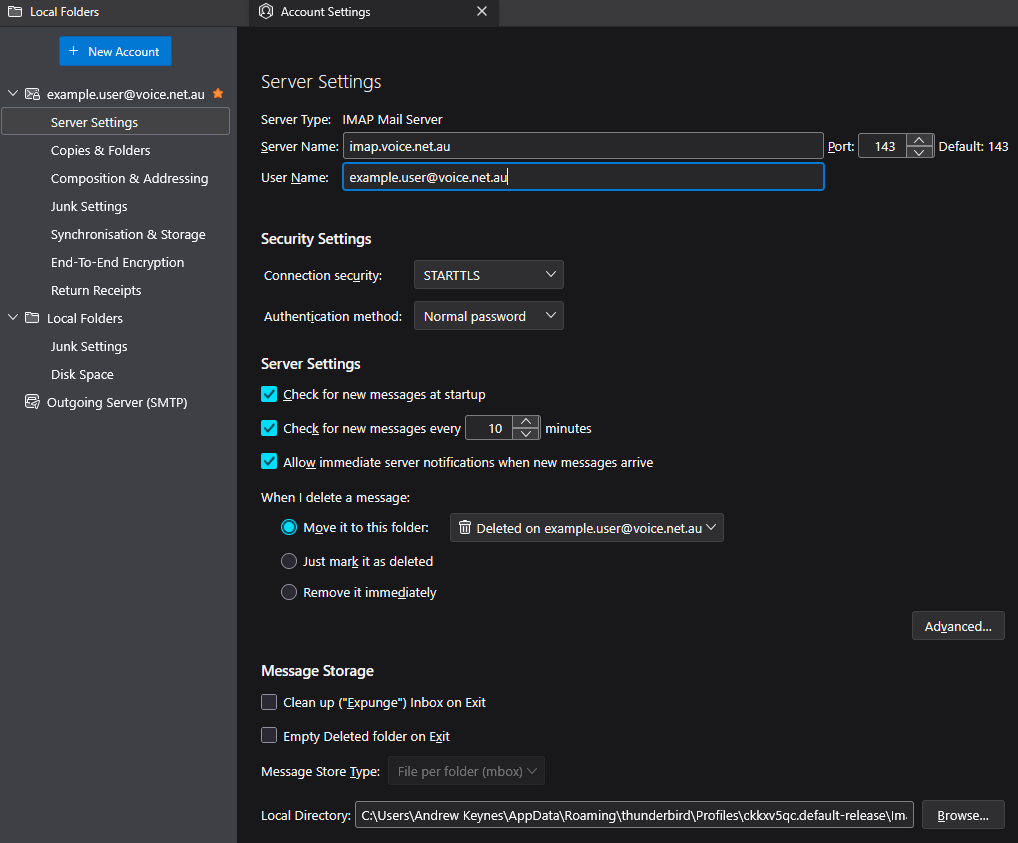
- In the left-hand menu, click on Server Settings under your account.
-
Adjust as needed:
-
For IMAP:
-
Server Name:
imap.voice.net.au -
Port:
143 (STARTTLS), 993 (SSL/TLS) -
Connection Security:
STARTTLS for port 143)orSSL/TLS for port 993) -
Authentication Method:
Normal password -
Username: Your full email address (Eg
example.user@voice.net.au)
-
-
For POP3:
-
Server Name:
pop.voice.net.au -
Port:
110 (STARTTLS), 995 (SSL/TLS) -
Connection Security:
STARTTLS for port 110)orSSL/TLS for port 995) -
Authentication Method:
Normal password -
Username: Your full email address (Eg
example.user@voice.net.au)
-
-
3. Update Outgoing (SMTP) Settings
-
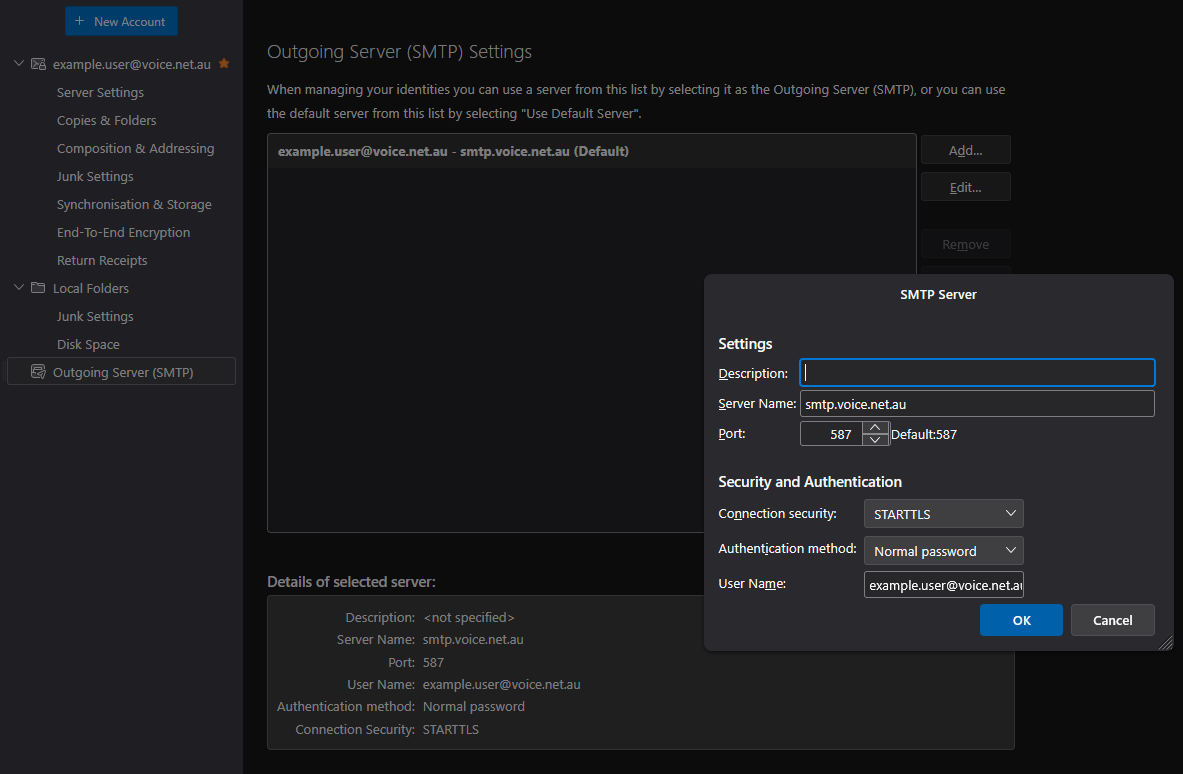
Scroll down and click Outgoing Server (SMTP) at the bottom left.
-
Select the correct SMTP server from the list, then click Edit.
-
Adjust as needed:
-
Server Name:
smtp.voice.net.au -
Port:
587 (STARTTLS)or465 (SSL/TLS) -
Connection Security:
STARTTLS (Port 587)orSSL/TLS (Port 465) -
Authentication Method:
Normal password - Username: Your full email address (Eg
example.user@voice.net.au)
-
4. Save and Test
- Restart Thunderbird if it requests it and try sending/receiving mail to test.
Screenshot Examples